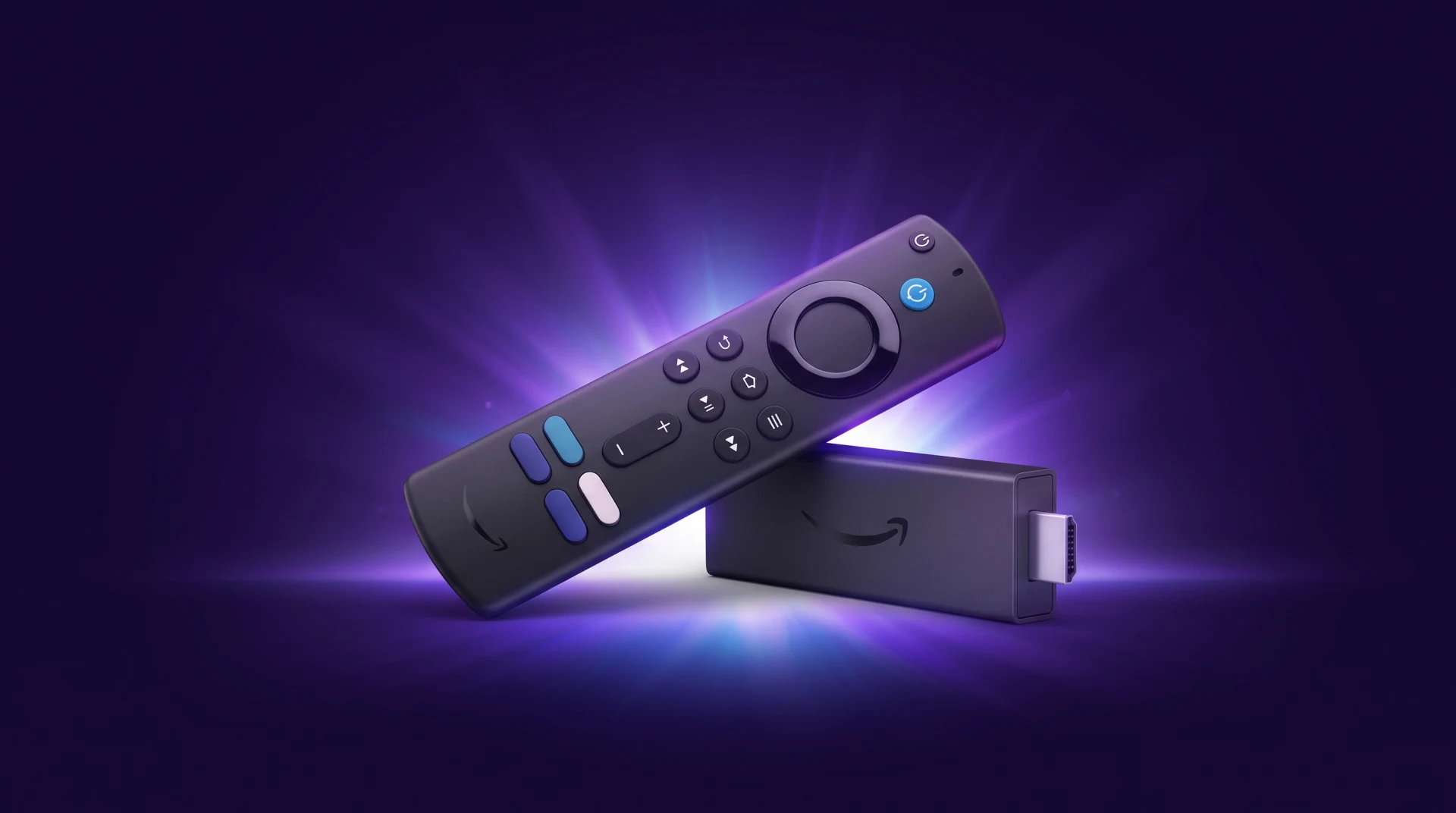
If your Amazon Firestick feels sluggish, apps take forever to load, or videos constantly buffer, you're not alone. Over time, Firesticks accumulate temporary files, background processes, and unused apps that can slow performance significantly.
The good news is that most Firestick speed issues can be fixed in less than 10 minutes without buying a new device.
Quick Answer
To speed up a slow Firestick:
Restart the device.
Clear app cache.
Uninstall unused apps.
Disable unnecessary background apps.
Free up storage space.
Update Fire OS.
Check your WiFi connection.
Disable data monitoring features.
These steps improve responsiveness, reduce buffering, and make navigation smoother.
Why Is My Firestick So Slow?
A Firestick typically becomes slow because of:
Full storage space
Too many installed apps
Excessive cache buildup
Background processes consuming memory
Outdated software
Weak WiFi signals
Overheating
Identifying these issues early helps restore optimal streaming performance.
1. Restart Your Firestick
Restarting clears temporary memory and closes background tasks.
Steps:
Go to Settings
Select My Fire TV
Click Restart
Alternatively, unplug the Firestick for 30 seconds and reconnect it.
Time Required: 1 minute
2. Clear App Cache
Cached files can accumulate and slow app performance.
How to Clear Cache:
Open Settings
Select Applications
Click Manage Installed Applications
Choose an app
Select Clear Cache
Focus on frequently used apps such as streaming services.
Benefits
Faster app loading
Reduced crashes
Improved responsiveness
3. Remove Apps You No Longer Use
Unused apps consume valuable storage and system resources.
To Uninstall Apps:
Settings
Applications
Manage Installed Applications
Select app
Uninstall
Try to maintain at least 1 GB of free storage whenever possible.
4. Free Up Storage Space
Low storage is one of the biggest causes of Firestick lag.
Check Available Storage
Settings
My Fire TV
About
Storage
Delete:
Unused apps
Downloaded files
Old APK installers
Temporary media files
5. Force Stop Apps Running in the Background
Many applications continue running even after you exit them.
Steps
Settings
Applications
Manage Installed Applications
Select app
Force Stop
This frees RAM and improves overall performance.
6. Update Firestick Software
Software updates often contain performance improvements and bug fixes.
Check for Updates
Settings
My Fire TV
About
Check for Updates
Install any available updates and restart the device afterward.
7. Improve Your WiFi Connection
Sometimes a slow Firestick is actually a network problem.
Quick WiFi Fixes
Move router closer to the Firestick
Use the 5 GHz WiFi band
Restart your router
Reduce network congestion
Upgrade your internet plan if necessary
Recommended Internet Speeds
Streaming Quality
Recommended Speed
HD
5 Mbps
Full HD
10 Mbps
4K UHD
25 Mbps+
8. Disable Data Monitoring
Amazon's monitoring features may use system resources unnecessarily.
Disable Data Monitoring
Settings
Preferences
Data Monitoring
Turn Off
This small adjustment can improve responsiveness on older Firestick models.
9. Prevent Overheating
An overheating Firestick may throttle performance.
Tips
Keep ventilation areas clear
Use the included HDMI extender
Avoid placing the device behind enclosed cabinets
Remove dust around the TV area
10. Factory Reset as a Last Resort
If nothing else works, a factory reset can restore like-new performance.
Factory Reset Steps
Settings
My Fire TV
Reset to Factory Defaults
Remember to back up login credentials before resetting.
Final Thoughts
A slow Firestick doesn't necessarily mean it's time for a replacement. In most cases, clearing cache, freeing storage, updating software, and improving WiFi connectivity can dramatically improve speed within minutes. If you are comparing newer hardware, see the Firestick 4K Max.
By following these 10 simple fixes, you can restore smooth navigation, faster app launches, and buffer-free streaming without spending any money. For streaming plan options, you can also view our UK IPTV subscription plans.